Tutorials · Interactive examples · Learning paths

Learn ADAS.
See it in action.

Explore how ADAS helps with speed, steering and parking through interactive demos and step-by-step tutorials.

Read an explanation. Try an example. Check your understanding.

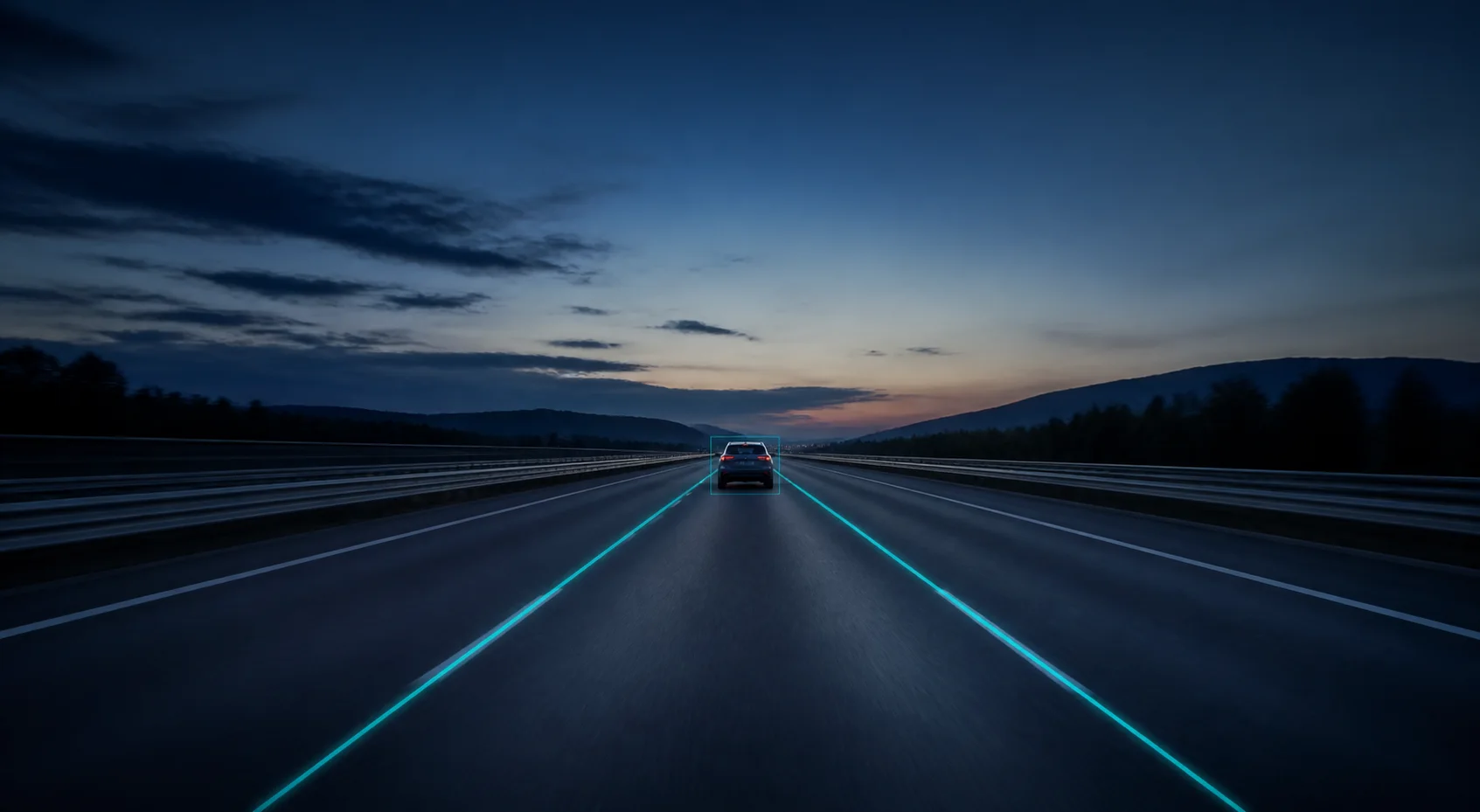
THE ASSISTED DRIVEIllustration
Illustrated highway scene with lane guidance and a highlighted vehicle ahead
See the situation.Understand the response.
Explore the interactive scenario
6 interactive systems 6 system tutorials A knowledge check in every lesson
One environment. Six perspectives.

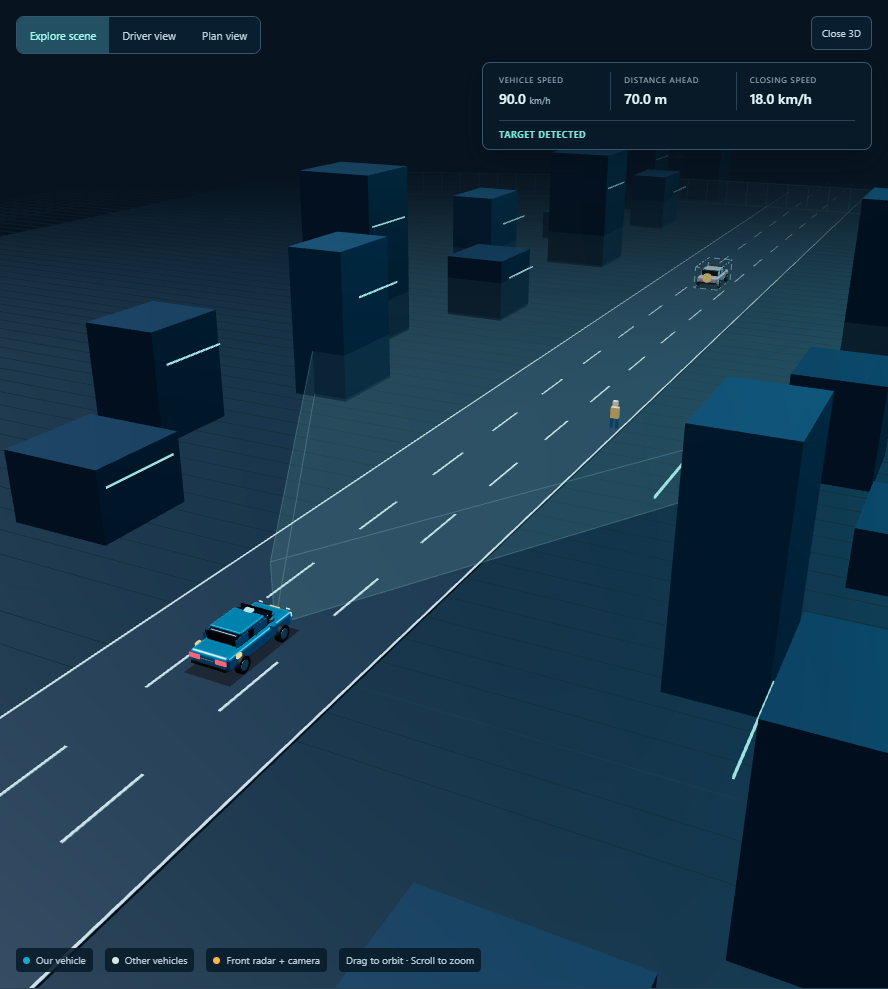
3D ADAS Lab

Inspect the scene. Switch systems. Connect what you see to the vehicle response.

ADAS / SCENE EXPLORERSIMULATED ENVIRONMENT

Step inside the scenario.

A shared road environment with tracked vehicles, sensor coverage and interactive camera views.

3D loads on demand. Existing 2D examples remain below.
0.0 / 14 s

Illustrative geometry and scripted behavior, not production sensor output or a validated driving simulator. Playback pauses while the scene is off screen or the browser tab is hidden.

Choose a system to explore.

01

Longitudinal control

Speed and following distance

EXPLORE THE SYSTEM

AEB · Automatic Emergency Braking

TOP VIEWDIRECTION OF TRAVEL →STATIONARY OBSTACLE36 km/h
0 / 14 s

Our vehicle approaches a stationary obstacle.

The system assesses the risk of a collision with an obstacle ahead. As danger increases, it may warn the driver and apply the brakes automatically. The aim is to prevent a collision or reduce the impact speed.

Front camera / radar
Read the animation steps
  1. Our vehicle approaches a stationary obstacle.
  2. A tracking frame marks the detected obstacle.
  3. The closing distance triggers a driver warning.
  4. Brake lights turn on as speed and forward motion decrease.
  5. In this example, the vehicle stops before the obstacle; stopping is not guaranteed in every situation.
Read the tutorial
02

Lateral control and awareness

Lane boundaries and adjacent traffic

EXPLORE THE SYSTEM

LKA · Lane Keeping Assist

TOP VIEWDIRECTION OF TRAVEL →CAMERA · LANE BOUNDARIES
0 / 14 s

The camera detects both lane boundaries.

A camera tracks road markings to locate the vehicle within its lane. Corrective steering assistance may be applied during an unintended lane departure. Assistance can be limited when the markings cannot be detected.

Front camera
Read the animation steps
  1. The camera detects both lane boundaries.
  2. The vehicle drifts toward the lane edge without indicating.
  3. The approaching boundary is highlighted in amber.
  4. Steering assistance guides the vehicle back into the lane.
  5. The correction is complete; this demonstrates LKA intervention, not continuous lane centering.
Read the tutorial
EXPLORE THE SYSTEM

BSM · Blind Spot Monitoring

TOP VIEWDIRECTION OF TRAVEL →BLIND SPOT CLEARAMBER AREA: LEFT REAR BLIND SPOT
0 / 14 s

The shaded area shows the region monitored by the rear corner radars.

The system monitors vehicles beside and behind the car. A warning lights up in the corresponding mirror when a vehicle occupies the blind spot. Indicating toward that side may trigger a more noticeable warning.

Rear corner radars
Read the animation steps
  1. The shaded area shows the region monitored by the rear corner radars.
  2. A vehicle approaches from behind in the adjacent lane.
  3. The vehicle occupies the blind spot; the mirror indicator lights up.
  4. An additional warning appears if the turn signal is on; BSM does not steer the car in this scene.
  5. The mirror warning turns off once the other vehicle has passed.
Read the tutorial
03

Parking and surround view

Understand the surroundings and follow the maneuver

EXPLORE THE SYSTEM

360° · Surround View

FRONTLEFTREARRIGHTCAMERA-STITCHING DIAGRAM
0 / 14 s

Explore the area covered by the front camera.

Cameras around the vehicle capture views from different directions. Software transforms and combines these images to create a view resembling a top-down perspective. This helps the driver judge parking lines and nearby obstacles.

Four wide-angle cameras
Read the animation steps
  1. Explore the area covered by the front camera.
  2. Explore the area covered by the right camera.
  3. Explore the area covered by the rear camera.
  4. Explore the area covered by the left camera.
  5. Four regions combine into one view; this is a camera-stitching diagram, not an aerial recording.
Read the tutorial
EXPLORE THE SYSTEM

Automatic Parking

SEARCHING FOR A PARKING SPACE
0 / 14 s

The vehicle moves slowly past the parking area.

The system measures available space to find a suitable parking spot. After driver confirmation, it controls steering and, depending on the vehicle, speed and braking. It monitors the surroundings throughout the maneuver and requires driver supervision.

Ultrasonic sensors + camera
Read the animation steps
  1. The vehicle moves slowly past the parking area.
  2. The available parking space is highlighted.
  3. The dashed line shows the planned reversing path.
  4. The vehicle reverses while its heading follows the path.
  5. The vehicle is now aligned within the parking space.
Read the tutorial

Illustrative teaching scenarios, not live sensor output or production vehicle control. System capabilities vary by vehicle and conditions.

From unfamiliar feature to useful knowledge

More than knowing what a button does.

ACC, AEB, LKA: the names are everywhere. Connect each one to a situation you recognise, its response and its limits.

  1. 01

    See it happen

    Play a demo. Change the situation and watch the car respond.

  2. 02

    Understand the why

    Read a short lesson with everyday examples and clear limits.

  3. 03

    Check your understanding

    Try three questions, learn from the feedback and move to the next system.

Six systems. Everyday situations.

Choose what you want to understand.

From following traffic to fitting into a parking space. Every lesson includes examples, system limits and a short knowledge check.

12 min

Adaptive cruise control

Understand how your car follows changing traffic.

Read the tutorial
7 min

Automatic emergency braking

Know why the car warns or brakes — and why it may not stop in time.

Read the tutorial
12 min

Lane keeping assistance

See how lane markings guide assistance, and what happens when they fade.

Read the tutorial
6 min

Blind spot monitoring

Understand the warning about traffic beside you.

Read the tutorial
6 min

Surround view

Make sense of the overhead-style view and its blind spots.

Read the tutorial
7 min

Automatic parking

Follow a parking maneuver from finding a space to checking for obstacles.

Read the tutorial
Clear about what this is — and is not

Learn the capabilities.
Recognise the limits.

For everyday drivers, curious students and future engineers. Start with the basics; follow the engineering roadmap when you want to go further.

See the learning roadmap

Understanding, not overconfidence.

Our scenarios are illustrations, not a driving simulator or a claim about your vehicle. Lessons cover limitations alongside benefits.

Created by Furkan Üzmez, an electronics engineer and software developer.

About the project
Before you start

A few quick answers.

What is ADAS?

ADAS stands for Advanced Driver Assistance Systems. These features use sensors to help a driver with tasks such as keeping a following distance, noticing nearby traffic or parking. They have limits and do not replace an attentive driver.

Do I need an engineering background?

No. Start with an animation and a basic tutorial. Everyday examples explain what each feature does, when it can help and where it can fall short.

Where should I start?

Choose a system that interests you. Play its interactive example, read the tutorial and try the knowledge check. Use the learning path to connect the basics to engineering topics.

Will I receive a certificate?

Not yet. Each lesson includes a three-question knowledge check, and completion is saved in your browser. This is a learning milestone, not a verified certificate or a driving qualification.

Do the demos show how my own car behaves?

The demos are simplified teaching scenarios, not live vehicle data or a validated driving simulator. Features and operating limits vary by vehicle. Follow your vehicle handbook and keep responsibility for driving.

Start with the car ahead.

Discover how adaptive cruise control responds when traffic changes.

Start the ACC tutorial